How to Update the Nikon Z8 Firmware: Step-by-Step Guide

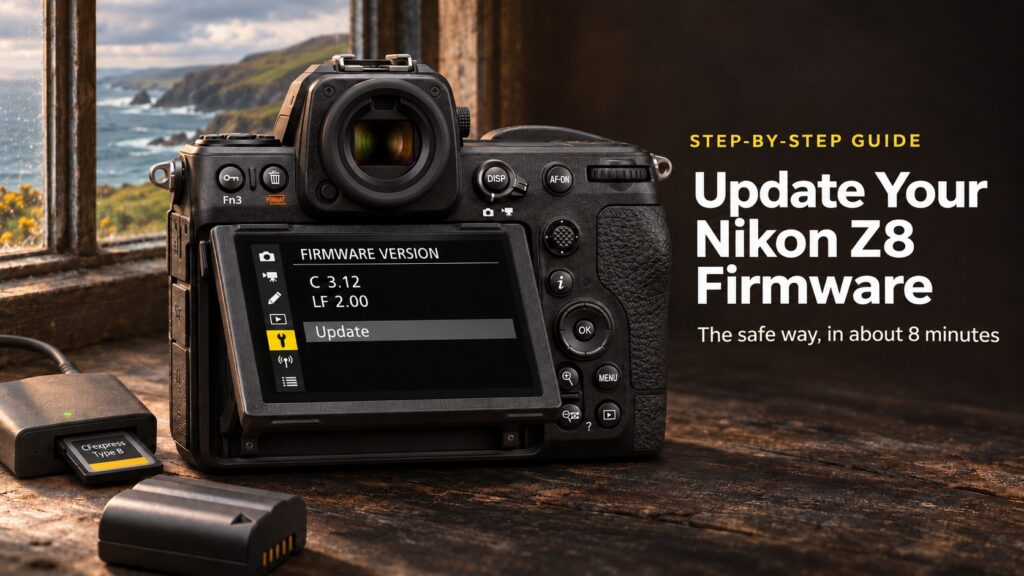
Nikon has been genuinely good to Z8 owners with firmware updates, adding new features as well as fixes. Updating takes about 8 minutes and is easy once you know the steps. Here is exactly how I do it.
Before You Start
- Charge your battery. It needs to be nearly fully charged or the camera won’t start the update.
- Check your current version: MENU > Setup menu > Firmware version.
- Latest version: at the time of writing the latest Z8 firmware is C 3.12, released on 20 October 2026. It fixes an issue where the camera could stop responding with some lenses.
- Back up your settings first, just in case: MENU > Setup menu > Save/load menu settings > Save menu settings. Save them to a second card, not the one you will use for the firmware.
- Have a card reader and a memory card you can format.
- Fit a Nikon Z-mount NIKKOR lens or no lens at all. Nikon warns not to update with other lenses attached, or with any adapter other than the FTZ or FTZ II, as it could cause a malfunction.
If you’ve been reading about the unofficial Z8 firmware patch, read my Nikon Z8 firmware hack article before you update. The patch only works on C 3.11, so updating to 3.12 rules it out.
How to Update the Z8 Firmware
- Download the latest firmware for the Z8 from the Nikon Download Center. Only ever download firmware from Nikon directly.
- Extract the download on your computer if needed, so you have the firmware file (it ends in .bin).
- Format a second card in the camera (not the one holding your settings backup), then put it in your card reader.
- Copy the firmware file to the top level of the card, not inside any folder.
- Put the card in Slot 1 (the CFexpress slot) with the camera switched off, then switch it on. Nikon’s instructions say the firmware card must go in Slot 1.
- Go to MENU > Setup menu > Firmware version and select Update, then follow the prompts.
- Leave the camera alone until the update finishes. Don’t switch it off, open the card door or remove the battery.
- When it is done, switch the camera off and on again and check the new version under Firmware version.
Nikon Z8
Menu path: MENU > Setup menu > Firmware version > Update.
Every Z8 setting like this, offline in your pocket. Get the Z8 Pro Guide app →
After the Update
Check your settings are as you left them and format the card again before your next shoot, so the firmware file doesn’t sit on it. Then read Nikon’s notes for the update, as new features are sometimes switched off by default.
Never take memory cards in or out while the camera is switched on, during an update or at any other time. Cards are not hot-swappable and it can corrupt them.
More on the Nikon Z8: Visit my Nikon Z8 hub for all my Z8 articles in one place.
FAQ
How long does a Nikon Z8 firmware update take?
Around 8 minutes in my experience, including copying the file to the card.
Why won’t my Z8 start the firmware update?
The most common reasons are a battery that isn’t charged enough, or the firmware file being inside a folder instead of on the top level of the card.
Will a firmware update reset my settings?
It normally keeps your settings, but back them up first to be safe.
Want every Z8 setting explained in one place? Get the Z8 Pro Guide app.
- 20 November 2026: First published.